Capture to Queue
Press Win + Shift + A.
Take a snip and it's added to your queue. Capture another and it joins the first.
No need to paste between captures.
Screenshot batching for Windows
Take multiple Windows snips, queue them automatically, then paste the entire batch when you're ready.
Coming soon to the Microsoft Store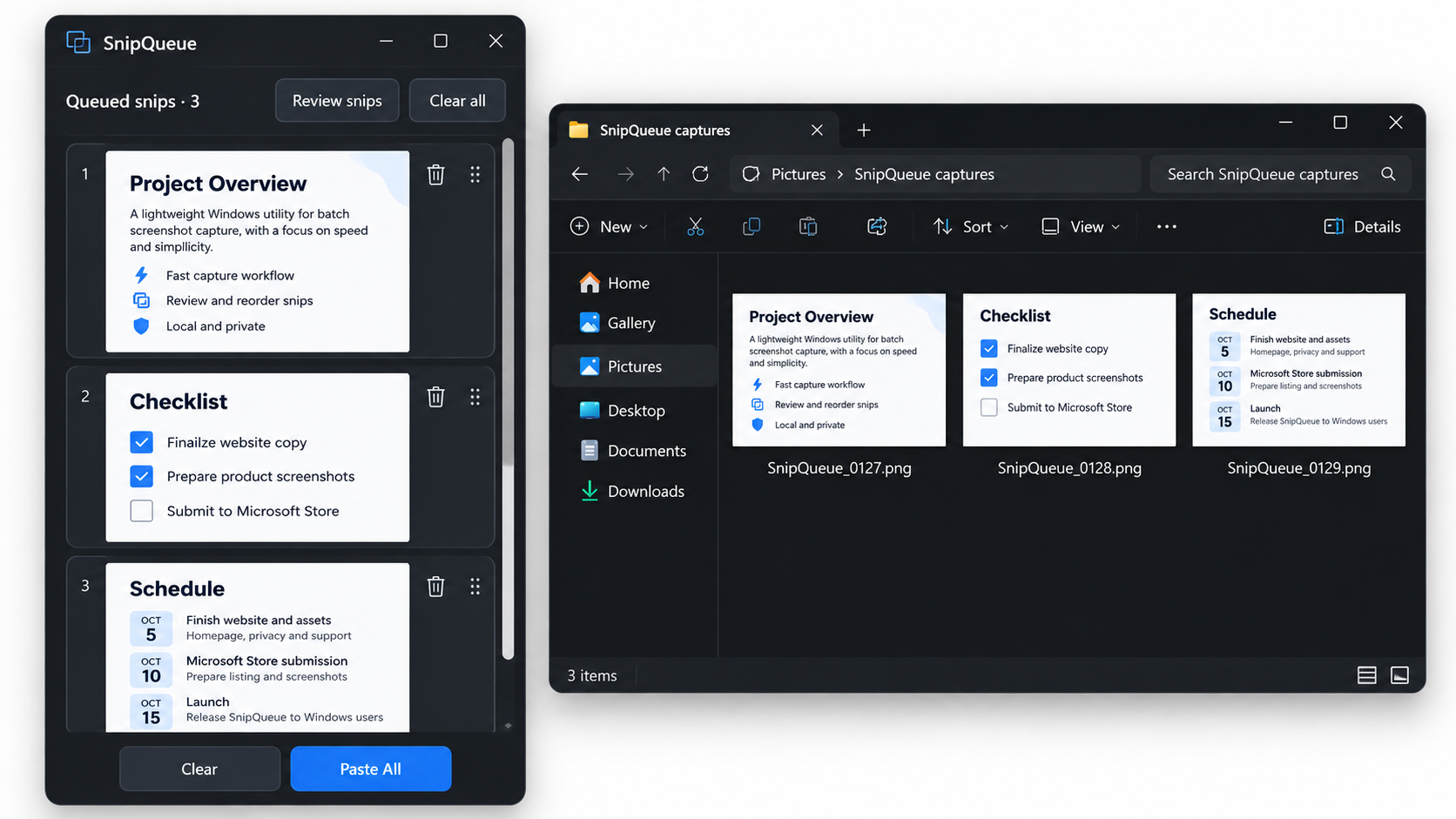
Typical screenshot workflows make you repeat the same process:
Capture everything you need first. Deal with it when you're ready.
Press Win + Shift + A.
Take a snip and it's added to your queue. Capture another and it joins the first.
No need to paste between captures.
Review your queued captures and drag snips into the order you want.
Delete individual snips or clear the queue and start again.
Press Ctrl + Shift + B or use Paste All.
SnipQueue sends your queued captures to supported applications in the order you've arranged, without making you handle each screenshot individually.
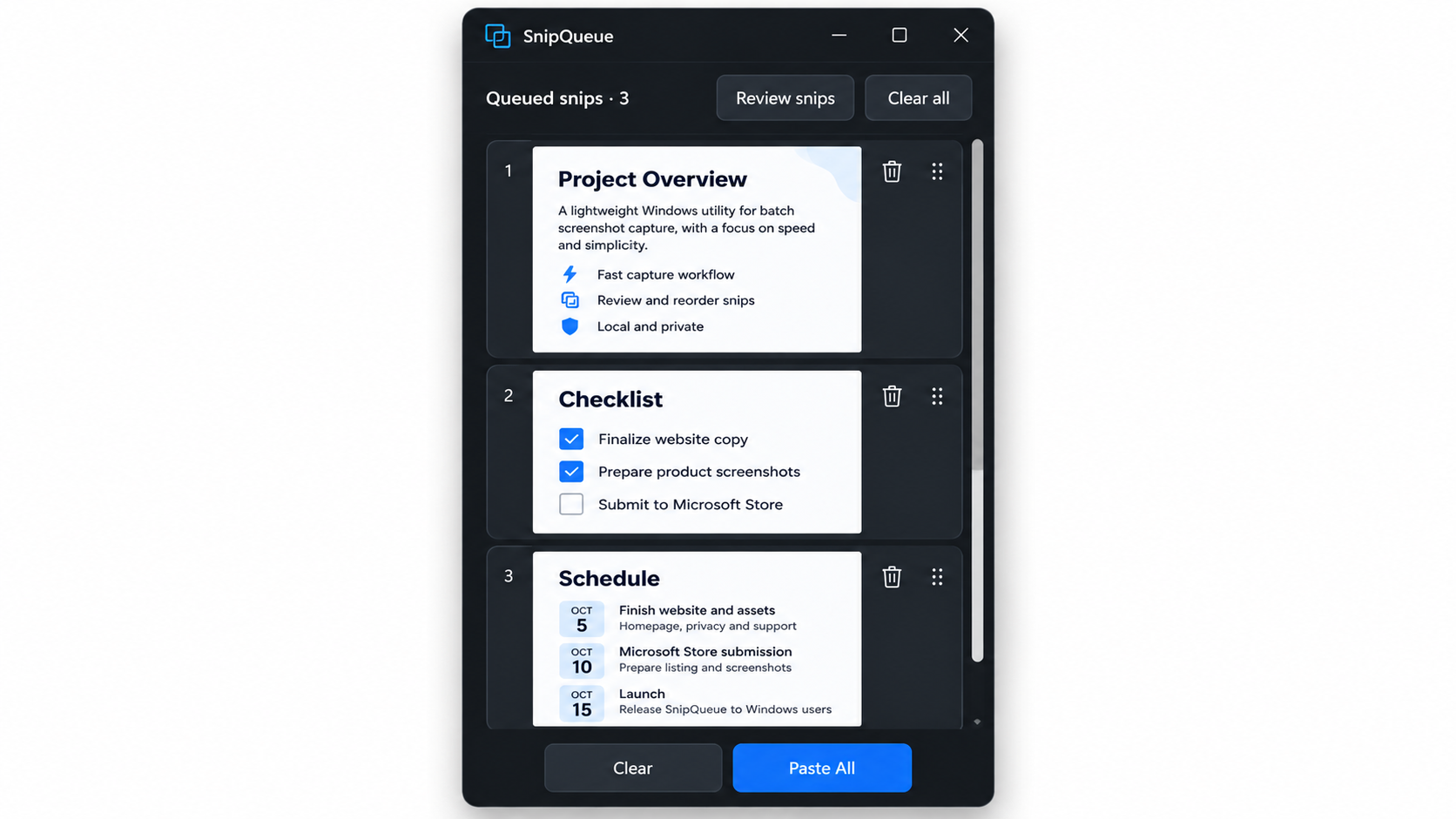
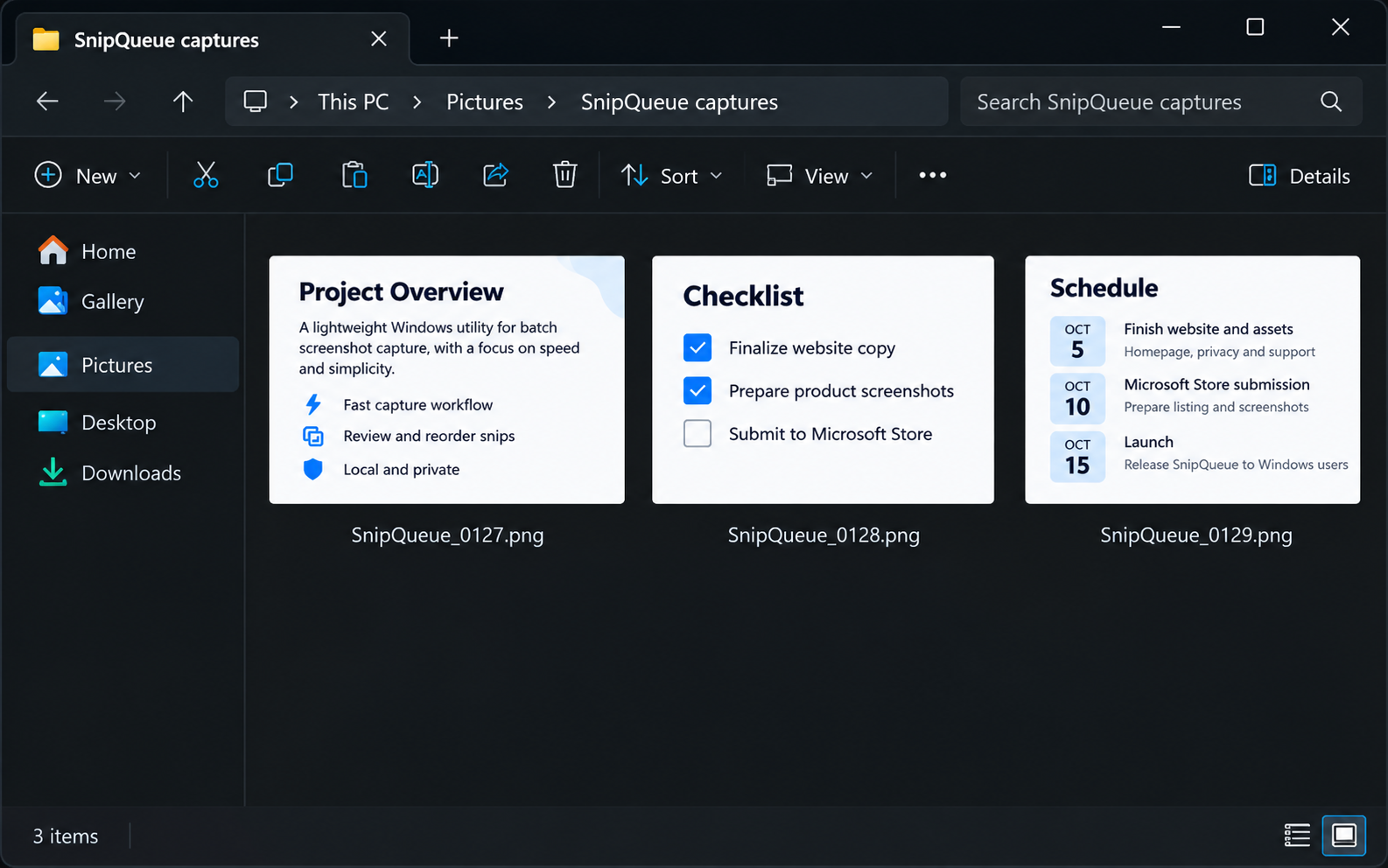
Open a folder in Windows Explorer and use Paste All.
SnipQueue turns your queue into individual PNG files with sequential SnipQueue filenames:
Capture. Open the folder. Paste All.
SnipQueue is designed specifically for Windows screenshot batching.
Just capture, queue and paste.
SnipQueue processes screenshots locally on your Windows computer.
Your captures aren't uploaded to SnipQueue servers, and you don't need a SnipQueue account to use the app.
No screenshot uploads. No account required.
SnipQueue for Windows
Coming soon to the Microsoft Store